A password manager creates and remembers a different strong password for every account, so you only have to remember one. Setting one up feels like a big job, but you can get the important parts done in about half an hour and move the rest over gradually.
Step 1: Choose a password manager
Pick a well-established manager that works on the devices you use, offers strong encryption and supports multi-factor authentication. Built-in options from your phone or browser are a reasonable start, and dedicated managers add features such as sharing and cross-device sync. If you are choosing for a team, read our password manager checklist for small businesses.
Step 2: Create a strong master password
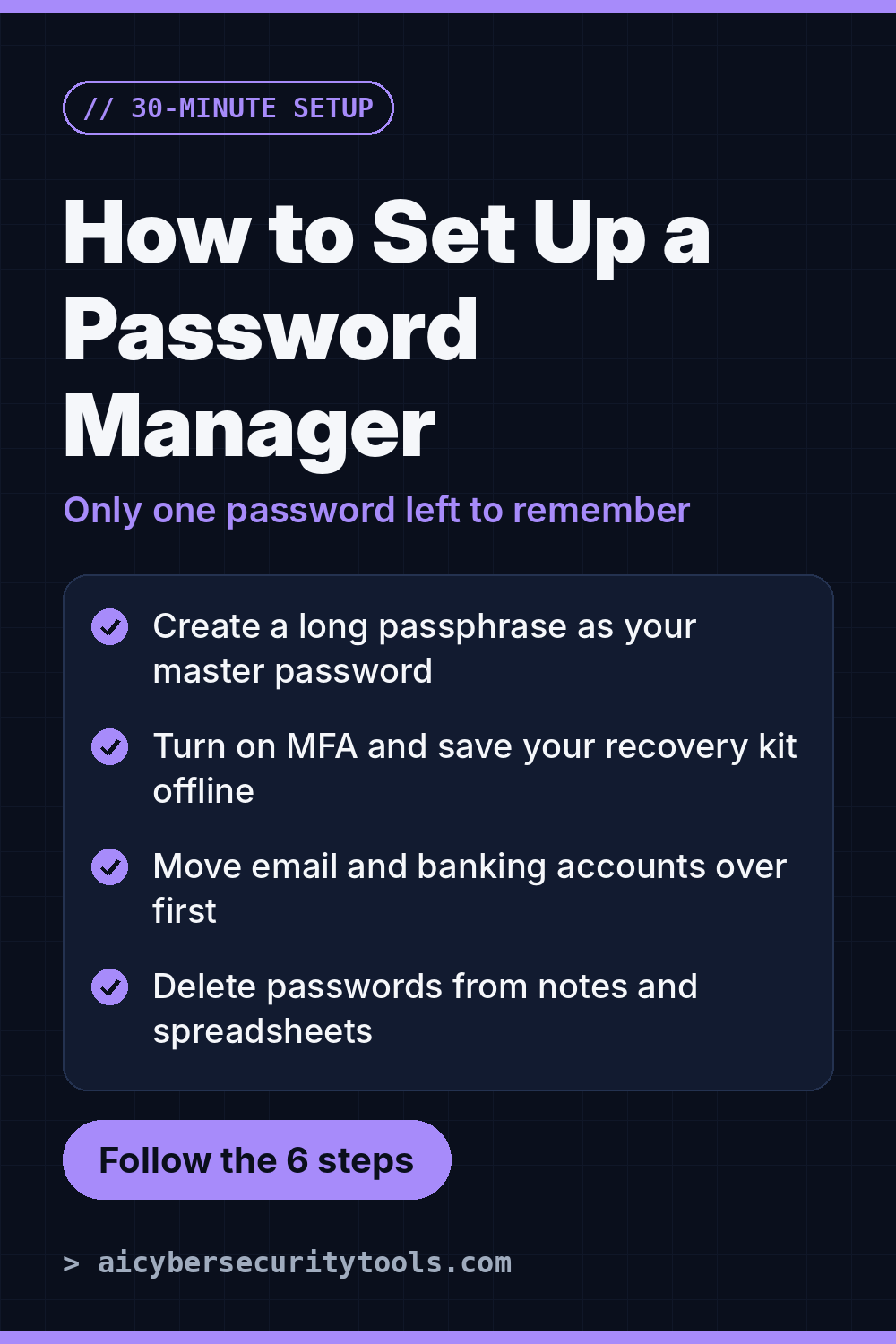
The master password unlocks everything, so make it long and unique, such as a passphrase of several random words. Do not reuse it anywhere else, and do not store it in a plain file. Our Password Strength Checker gives a basic review, and our guide on strong passwords explains the habits.
Step 3: Secure the vault
- Turn on multi-factor authentication for the manager itself. See our MFA guide.
- Save the recovery key or emergency kit the manager gives you, and keep it offline in a safe place.
- Set the vault to lock automatically after a short period.
Step 4: Install it where you work
Install the app on your phone and the browser extension on your computer, then sign in. This lets the manager fill passwords for you and offer to save new ones as you sign in.
Step 5: Move your most important accounts first
- Your main email account.
- Banking, payment and shopping accounts.
- Cloud storage, social media and work accounts.
For each one, sign in, change the password to a newly generated one and let the manager save it. After that, update accounts as you use them each day, and the rest will follow over a few weeks.
Step 6: Clean up old habits
- Delete passwords saved in spreadsheets, notes apps and sticky notes once they are in the vault.
- Check whether reused or old passwords appeared in a breach with our Password Breach Checker, and change any that did.
- Share passwords only through the manager’s sharing feature, never by chat or email.
Frequently asked questions
Is it risky to keep all my passwords in one place?
Any approach has trade-offs, but for most people a reputable manager with a strong master password and MFA is far safer than reusing passwords or writing them down.
What if I forget my master password?
Many managers cannot recover it for you by design. Use the recovery key or emergency kit you saved when you set it up.
This guide is general information. Follow your chosen manager’s own setup instructions, and check each vendor’s current features and security documentation.